ReferralQ Dashboard
Using the ReferralQ Dashboard
The ReferralQ Dashboard is available to Administrators and those with the Advanced Security Permission enabled. From the ReferralQ Dashboard, users can view and assign Contact Records to available Resources/Providers, edit notes and change status. The table view of Contact Records in the ReferralQ Dashboard allows users to quickly sort, filter, view Capacity (if used) and prioritize Contact Records for Provider referral.
How to grant permission to Standard Users to access the ReferralQ Dashboard
- Log in as an Administrator or user with access to manage Volunteer-Staff Advanced Security Settings
- Click on Vols-Staff from the left menu
- Find the Vol-Staff user from the list, and click on their account to open details
- Click on the "Admin" tab
- Click on "Advanced Security Settings"
- Click on the setting "Can access ReferralQ Dashboard."
- Click "Save Setting"
How to access and navigate the ReferralQ Dashboard
How to access ReferralQ Dashboard
- Log into iCarol as an Administrator or user with the "Can access ReferralQ Dashboard" Advanced Security Setting enabled
- Click on "Contacts" from the left menu
- Click on "ReferralQs" from the menu box
How to View In Progress and Done Contact Records in the ReferralQ Dashboard
The ReferralQ Dashboard by default displays all Contact Records in "In Progress" ("Pending" or "Assigned") meta status
- To view records in a "Done" meta status, click the "Done" button
- To switch back to "In Progress" meta status, click the "In Progress" button
 Important Note: The Contact Record will be included in the ReferralQ Dashboard for each ReferralQ that it is assigned. Meaning, if the Contact Record is assigned to two (2) different ReferralQs, there will be two (2) separate rows in the ReferralQ Dashboard, each with the same Contact Record number, one row for each ReferralQ assignment.
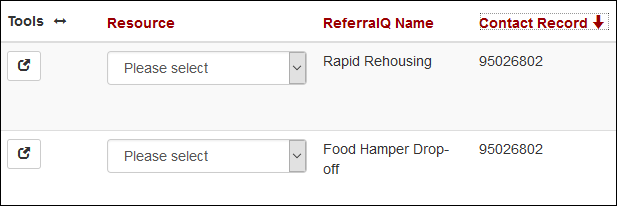
Important Note: The Contact Record will be included in the ReferralQ Dashboard for each ReferralQ that it is assigned. Meaning, if the Contact Record is assigned to two (2) different ReferralQs, there will be two (2) separate rows in the ReferralQ Dashboard, each with the same Contact Record number, one row for each ReferralQ assignment.
How to full-screen the ReferralQ Dashboard
The ReferralQ Dashboard can be full-screened by clicking on the 4 arrows next to the page title.
To return to the previous display, click the 2 arrows next to the page title or click escape (esc) on your keyboard.
How to add or remove columns from the ReferralQ Dashboard
Columns can be added or removed from the ReferralQ Dashboard.
Remove columns from the column headings by:
- Clicking the red X when moussing over the column title
Add or Remove columns from the "Show/Hide field choices" list by:
- Clicking on the "Show/Hide field choices" button
- Checking/Unchecking the selection to the left of the field name
Tip: Use the "Search field names" search box in the Show/Hide field choices list to filter the displayed field choices.
How to sort Contact Records on the ReferralQ Dashboard
Columns can be sorted by clicking on the column title. An arrow will display when the column is sorted to identify if sorted ascending or descending.
How to filter displayed Contact Records on the ReferralQ Dashboard
Displayed records can be filtered by standard or custom fields.
Add a new filter by:
- Clicking on the filter icon next to the column title
- Or from the field within the Show/Hide field choices list
Configure the filter by:
- Once you have added a filter, the filter menu will display, allowing you to choose or enter a value to include or not include and to change the filter type based on the field type.
- Configure your filter criteria
- Click "Add" to apply the filter
Filter Options
- Text type standard or custom field filters can include or NOT include text that:
- Equals To
- Contains
- Begins With
- Ends With
- Is Null (or Blank)
- Date type standard of custom field filters can include or NOT include dates that are:
- Equals To
- Is Greater Than (>)
- Is Greater Than OR Equals To (>=)
- Is Less Than (<)
- Is Less Than OR Equals To (<=)
- Is Null (or Blank)
Edit applied filters:
Applied filters will display at the top of the page, and can be edited:
- Check or uncheck the "Not" field to switch between including or excluding the value instantly
- Choose a filter type from the drop-down list to change the filter type instantly
- Edit the value to filter by (e.g. "rapid"), then click the checkmark to apply the change
Delete applied filters:
- Delete a filter by clicking the red X button to the right of the filter value
Advanced Filter Options:
When more than one filter is selected, user can choose to use All (default) or Any logic by changing the "return results which meet All/Any of the above conditions" setting
- "All" filter logic means that Contact Records returned in the results must meet all selected filters
- "Any" filter logic means that Contact Records returned in the results must meet at least one of the selected filters
How to Create, Apply, Edit and Delete Saved Views of the Dashboard
After field choices, filtering and sorting is applied to the ReferralQ Dashboard, you can save these settings as a custom View to make it easier and faster to reapply field choices, filters and sorting.
To create a new View:
- On the ReferralQ Dashboard, adjust field choices, filters and sorting as needed
- Click the button labeled 'View: Default'
- Click the plus sign next to 'Saved Views'
- In the 'Name' text field, type a name for the View
- Click the check mark to save
To apply a saved View:
- On the ReferralQ Dashboard, click the 'View' button
- Click the name of the View you want to use
- 'View' button will change to show which view is currently selected, ie. View: Default vs. View: Meals on Wheels
To Edit a View:
- On the ReferralQ Dashboard, click the 'View' button
- Select the name of the View you want to edit
- Make changes to the view (i.e add/remove columns or filters)
- Next to the name of the selected view, click the save icon
To Edit a View to share it or keep it private (private is the default):
- On the ReferralQ Dashboard, click the 'View' button
- Next to the name of the View, the person icon means the View is Private, the Globe icon means the View is Shared
- To switch between private and shared, click the person icon or the globe icon
- Click 'Ok' when the dialog box confirming your selection appears
To delete a saved View:
- On the ReferralQ Dashboard, click the 'View' button
- Next to the name of the View, click the garbage can icon
- Click 'Ok' when the confirmation dialog box appears
How to Export a ReferralQ Dashboard
After field choices, filtering and sorting is applied to the ReferralQ Dashboard, or you choose to use a custom View, you can export the Dashboard as a .csv file to complete further reporting and analysis.
To export a ReferralQ Dashboard:
- On the ReferralQ Dashboard, adjust field choices, filters and sorting as needed, or choose a View by clicking the 'View' button
- Click on the Download button, next to the 'Show/Hide resource capacity' button
- File will download within the browser
- Click the completed download to open the file
How to view the details of a Contact Record
Click on the Details button displayed in the Tools column to open the details view of the Contact Record
Updating ReferralQ Status, Notes and assigned Resources/Providers:
To update the Contact Records ReferralQ Status:
- Find the Contact Record in the ReferralQ Dashboard
- Choose the new status from the Status drop-down list
- Click the checkmark to save the change (or the x to cancel)
Important Note:
- Status changes are saved to the ReferralQ History of Changes
- Status options can be changed when setting up and managing the ReferralQ
- The status choice does not automatically change when a resource is assigned
How to assign Contact Records to Resources/Providers
- Find the Contact Record in the ReferralQ Dashboard
- Choose the Resource/Provider from the Resource drop-down list
- Click the checkmark to save the change (or the x to cancel)
Important Note:
- Resource changes are saved to the ReferralQ History of Changes
- Available Resources can be changed when setting up and managing the ReferralQ
- The status choice does not automatically change when a resource is assigned

Important note when using the Provider Portal:
- Provider Email Notification: Assigning a Contact Record in the ReferralQ to a Resource/Provider may trigger, based on user preferences, a notification email to any Provider Account with that resource assigned.
- Assigning a Contact Record in the ReferralQ to a Resource/Provider will make that Contact Record available to any Provider Portal user who is assigned the same resource record. Depending on Provider Portal user settings, Providers may be able to view full Contact Record details (including personal information), referrals, ReferralQs, and make changes to ReferralQ status and note fields. Providers cannot access records that are not assigned to the same resource which they are assigned.
How to use ReferralQ Note field from the ReferralQ Dashboard
The ReferralQ Note field is intended for communication between the volunteer-staff member who submitted the initial Contact Record, the ReferralQ Dashboard users who assign the Contact Record to a Provider/Resources, and if also using the Provider Portal – the Provider to share information back. Notes may include details about preferred meeting times, risk level to help prioritization, status notes, outcomes or other details about the services provided or requested, etc.
To add a Note:
- Find the Contact Record in the ReferralQ Dashboard
- In the Note column, click the plus sign to add a new note
- Click the checkmark to save the changes (or the x to cancel)
- Click on the triangle at the bottom right of the text field to change the field size temporarily
To review all Notes:
- Find the Contact Record in the ReferralQ Dashboard
- In the Note column, click the chat icon
- A pop-up box will appear with a list of all notes added, including the name of the person who added the note and the date and time they added the note
Important Note:
- Only the most recent Note added will appear when viewing or editing the Contact Record directly
How to use Resource Capacity with ReferralQ
When using the ReferralQ Dashboard, if you are also using the Capacity feature, the current Resource Capacity can be displayed to help make the right number of referrals to your Provider partners.
- Click the "Show/Hide resource capacity" button
- View the current Resource Capacity for each displayed ReferralQ
- When available the current Resource Capacity Note will display under the Resource Name
-
As Contact Records are assigned to Resources from the ReferralQ Dashboard, the current Resource Capacity for that resource will decrease automatically
Important Note:
- Tip: The Capacity Note will also display in a tooltip when mousing over the Resource/Provider name when assigning a Resource.
- Using capacity is not required to use the ReferralQ or assign Contact Records to Resources
- iCarol will not prevent ReferralQ Dashboard users from assigning more Contact Records to Resources when the capacity reaches zero (0)
- Current Resource Capacity will be refunded for specific Resources if the assigned resource is changed within 24 hours of being assigned
- When filters are applied to the ReferralQ Dashboard, only current Resource Capacity for ReferralQs included will be displayed
Related Articles
Training Plan: ReferralQ & Provider Portal
ReferralQ & Capacity Tracking: Manage ReferralQ (Create, Edit, Delete) Assign Contact Records to ReferralQ Assign ReferralQ Resources Directly from Contact Form ReferralQ Dashboard ReferralQ Statistics & Reports ReferralQ Resource Capacity Provider ...Assign Contact Records to ReferralQ
How to assign Contact Records to your ReferralQs Once your ReferralQ is configured with Statuses, assigned Contact Forms and Resources, the "Assign this Contact Record to a ReferralQ" panel will display on the Resources section of your Contact ...Manage ReferralQ (Create, Edit, Delete)
What are ReferralQs? ReferralQ & Capacity Tracking enables you to document and track your Partner Community-Based Organization's (CBO) capacity to accept referrals, and update a help-seeker's status as they work with your Partner so you can obtain ...ReferralQ Resource Capacity
What is ReferralQ Resource Capacity? Resource Capacity allows Resource Editors and Provider Portal users to share with your ReferralQ Dashboard users and viewers of your Resource Records how many referrals the Resource/Provider can serve. For ...Assign ReferralQ Resources Directly from Contact Form
Admins and Supervisors can assign ReferralQ Resources directly from a contact form automatically. If you would like users at other security levels to be able to assign ReferralQ Resource Directly from a contact form, this must be enabled. How to ...