New Vol-Staff: Skills And Achievements
Skills & Achievements:
- This feature allows Admins and Supervisors to create and track skills, achievements and milestones for their Vols-Staff members. For example, "Police background check completed," "Trained in CPR" or even a recurring requirement like "Attended annual training session."
- Admins and Supervisors can also create and edit their own categories, into which they can then put individual Skills & Achievements.
- Admins and Supervisors can use categories to create teams or grouping of vol-staff.
- Admins and Supervisors Profiles have a notification setting for an end of month summary report on "upcoming and overdue skills and achievements".
Skills & Achievements are accessed from the Vol-Staff section when clicking on the “Skills & Achievements List” sub-menu. This list will display all existing Skills & Achievements, along with their Categories and other configuration options.
Categories:
Skills & Achievements are organized by Categories. To manage your Categories
- Click on the “Actions” button in the Action Bar
- Then “Manage Categories”
3. This will open the Manage Skills and Achievements Categories Window
Management Options:
To create a new
category, click “+Add”, enter a name, choose an option Program (if
subscribed) and the order to display in the list
- To edit an existing category, double-click on the row, or select the category by clicking the row, then click “Edit” from the menu. Make any changes then click “Update”, or “Cancel” to go back.
- To delete an existing category, select the category to delete by clicking it once, then click “Delete” from the menu. You will be asked to confirm the deletion as deleting the category will also delete all related Skills & Achievements.
- Click “Save” to save any changes to existing categories, deletes or newly created categories.
- Click “Close” to go back without saving
Add Skill/Achievement
From the Sub Menu click on Skills & Achievement List
Click on "Add Skill/Achievement" from the Action Bar
Enter a title, choose a category, Status and optional configuration options
Click "+Create" to save or "Cancel" to go back without saving.
Review Assigned Skills & Achievements:
This page allows Administrators and those with permission to
view, filter and communicate with Vol-Staff users based on their assigned
Skills & Achievements.
To filter assigned Skills and Achievements, use the filters found on the Focus Panel.
To send an email to Vol-Staff users based on their assigned Skills and Achievements, such as all with incomplete status
- Select the individual Vol-Staff Skill and Achievement records from the list, or use the select all button found in the column headers.
- Click “Sent Email” from the Action Bar
Bulk Assignments:
To complete Bulk Actions,
Bulk actions allow you to send multiple messages or make mass changes to all selected volunteer-staff records.
- Click on the “Actions” button in the Actions Bar
- Choose an action to complete, then follow the steps displayed
Add Skills & Achievements: Allows you to assign one or more of your configured Skills & Achievements to selected volunteer-staff users
From the popup window,
- Select the skills or achievements you would like to assign, then click “Next”
Choose a Due Date and
Status to update all skills or achievements or modify each individually.
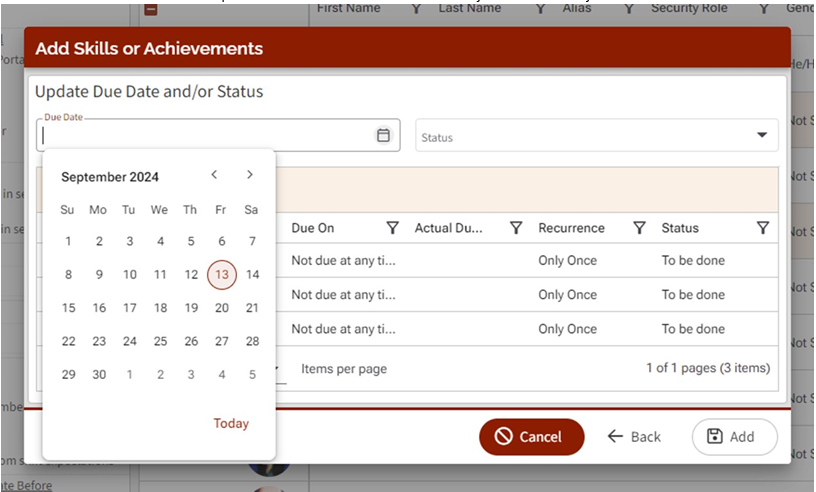
Click “Add” to assign
the selected skills and achievements, “Back” to modify your selections,
and “Cancel” to go back to the list view without making changes.
Related Articles
Skills and Achievements
What is the Skills and Achievement feature? This feature allows Admins and Supervisors to create and track skills, achievements and milestones for their Vols-Staff members. For example, "Police background check completed," "Trained in CPR" or even a ...New Vol-Staff: Create, Edit Users
How to create new users: To create a new user, 1. Click on “Add User” from the Action Bar 2. A new empty volunteer-staff record will be created, complete all required fields along with any optional ones your organization is also using. Once entered. ...New Vol-Staff: Navigation and List View
What is Vols and Staff feature? The place where you can view and update your own and view other users profile information (if permitted). The place for Admins or Supervisors to enter user information and manage security settings (add/edit user ...Training Webinar: New Vols-Staff UI/UX
This training will cover: Overview of Modernization Project Vol-Staff Overview Navigation List View Details Skills & Achievements Bulk Actions Create New Users Advanced Security SettingsVols-Staff Admin Settings
Vols-Staff Admin Settings enable you to customize what information is displayed regarding Vols-Staff profiles and enable you to turn on or off features related to Vol-Staff profiles. These settings apply to all Vols-Staff user profiles in your ...